Showing posts with label ICS 4.0.3 Firmware. Show all posts
Showing posts with label ICS 4.0.3 Firmware. Show all posts
Friday, 18 May 2012
HTC Sensation ICS Update Started Wifi Tethering – Android Application to Fix
New update includes lots of improvements and features on the existing version, in the same manner ICS Update to the HTC sensation user bought many features but it has also stopped Wi-Fi Tethering options, however thanks to the FoxFi app which re-activated Wi-Fi Hotspot to the HTC sensation users.

To use this application, it does not require neither any access
point nor rooting access and it can support your internet plan as Wi-Fi Hotspot
Utility. FixFi application is available in Android Play Store ( Download from here )
This app is excellent for the ICS Update to HTC sensational
users easy download and install it with a change Log.
If you have any queries please feel free to write in the
comments sections. we will try to help you with your queries.
06:09 0
Tuesday, 15 May 2012
Procedure to Update Stable ICS 4.0.4 Firmware on Motorola Defy Plus
You have seen that Motorola defy users are enjoying the benefit
of ICS 4.0.4 firmware, now the same benefits can also be enjoyed by Motorola Defy Plus users. if you are on the rooted firmware then only
you can apply for this Update. There is
no official firmware release and we don’t have any ETA on Official ICS Update.
As mentioned above in this article, to apply this update one should root the device but when
device is rooted the warranty will get void. You can revoke the root access is by reapplying the Official
Update. Here we are cross checking the pre requisites one should follow for
installing this update.
Disclaimer:
We are not responsible for any damage happened to your device in the process of
following the instructions steps mentioned in this article. It’s very unlikely
that there will be any issues however we will try to help you at our best.
Issues:
· when switching between tabs there is a possibility of Stock browser crashes
· when switching between tabs there is a possibility of Stock browser crashes
Working perfectly:
· Phone
· Camera
· SMS
· Multi boot( Need to flash multi boot mod of course)
· Themes
· HWA is enabled for all apps(build. prop hwui. whitelist set to 0)
· ADB debugging should be disabled.
· Phone
· Camera
· SMS
· Multi boot( Need to flash multi boot mod of course)
· Themes
· HWA is enabled for all apps(build. prop hwui. whitelist set to 0)
· ADB debugging should be disabled.
Stand
Out Features:
· Camera Panorama
· Network Usage Stats
· Face Detection
· Chrome
· Camera Panorama
· Network Usage Stats
· Face Detection
· Chrome
Working
but with bugs:
· For most of the users flash player is now working in browser
· Chrome can be made to work using chainfire3d
· Air Twist (streaming through wi fi) of double twist player. Enabling it in wi fi disconnects internet.
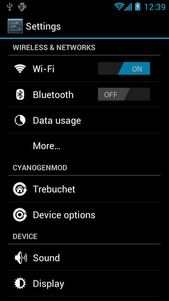
Here is the screen shot of ICS 4.0.4 on Motorola Defy Plus
· For most of the users flash player is now working in browser
· Chrome can be made to work using chainfire3d
· Air Twist (streaming through wi fi) of double twist player. Enabling it in wi fi disconnects internet.
Here is the screen shot of ICS 4.0.4 on Motorola Defy Plus


Pre
Requisites:
·
Please back up all your data like SMS Data, Contacts, Call Logs,
Songs Videos and Files in your Motorola Defy Plus because just in case if the
data get corrupted or Lost then same can be restored with below given steps.
Please be informed that Data backed up with the help of PC Suits does not support by the Custom ROM firmwares..
SMS –
Use “SMS Backup & Restore app”,
Contacts – Sync with the Gmail application,
Call Log - Call Log and Restore
Songs, Videos, Files – Copy to internal / External SD Card,
APN and MMS Settings – “Applications > Settings > Wireless and Network > Mobile Networks > Access Point Names”
Contacts – Sync with the Gmail application,
Call Log - Call Log and Restore
Songs, Videos, Files – Copy to internal / External SD Card,
APN and MMS Settings – “Applications > Settings > Wireless and Network > Mobile Networks > Access Point Names”
·
It is advisable to disable all your anti-virus suits in your
Device and Computer. There are chances that tends to interrupt the process of
firmware update.
·
As matter of precaution the device charge level should be more than
60% so as to ensure that Defy Plus
does not get turned off while in the process of firmware update.
·
Here is the path to enable the USB debugging on your device
“Settings > Applications > Development > USB debugging”. Then USB
Debugging option should be checked.
Steps
to Update Motorola Defy+ with Ice Cream Sandwich 4.0.4 Firmware:
·
Download Ice Cream Sandwich from Motorola Defy+ & Google
Apps on your computer.
·
Connect your Motorola Defy Plus to Computer. We are placing the
two downloaded zip files in your Defy Plus SD Card. Make sure that you
are not placing the file deep into the device or else device may get spoil.
·
To start in recovery mode you need to turn off the device. By
Pressing and holding the Volume Down button the Motorola Defy Plus can be
entered into the recovery mode and turn ON the device by pressing the Power button.
·
In the next step, select “install zip from sd card” > “choose
zip from sd card” > Ice Cream Sandwich 4.0.4 Firmware Package and press the
Power button to confirm the same.
·
Once this update is successfully applied then the device either
go back to recovery mode or you need to select “----- Go Back -----” and select
the option of “reboot system now” for rebooting the phone.
Note: If
the Motorola Defy plus get in Boot Loop mode then you need to take out the
battery and reinsert the battery and
start over the whole process from the beginning so as to apply the firmware
Just in case If you have any questions regarding this please
mention your comments in the comment section, we will try to respond at the
earliest.
01:38 0
Sunday, 22 April 2012
The SONY Ericsson Xperia Arc to update with ICS 4.0.3 Firmware
In the due course of this article, the Xperia Arc users too can join the ICS 4.0 party we will be monitoring on how you can easily apply the latest version of ICS 4.0.3 firmware. Please note that the officially update of the devices is not yet done and is criticize to get an update not before May – June 2012. All thanks to the update which was earlier rolled out officially to the Xperia Arc S as this can be ported to the Xperia Arc too. Please note that there will be some minor issues since this is not the native ICS for the Arc, but will be solved in the stable official update which will be rolling out very soon.
.
Disclaimer: The developer should not be held responsible for any damage happened to your device in the process of following the instructions mentioned in this article. It’s very unlikely that there will be any issues but just in case if at all there are any issues then we are committed to help you in solving the same.
Over a period of this article we will be checking out on what are the list of pre requisites which you need to follow and then in the next page we will be checking out on what is a detailed tutorial. Please note that by applying with this update won’t root the device and also just in case if you wish to root your phone, you can easily root the same. An article wherein you can easily root your Sony Ericsson Xperia Arc on the latest ICS 4.0.3 firmware will be soon coming up.

Pre Requisites:
All the data like SMS, Contacts, Call log, APN, MMS Settings and other data present in your internal SD should be backed up so that just in case if the data gets erased or corrupted, the same can be restored with the help of below mentioned steps.
Remove the SIM card as well as SD Card from your phone as its recommended to remove the same.
SMS – Use “SMS Backup & Restore app”,
Contacts – Sync with the Gmail application,
Call Log - Call Log and Restore
Images, Songs, Videos, Files – Copy to internal / External SD Card,
APN and MMS Settings – Note down from the path “Applications > Settings > Wireless and Network > Mobile Networks > Access Point Names”
To get the uninterrupt process of firmware update,disable all the antivirus suites in your computer and uninstall the same in your device. You should have the admin rights in your PC along with the active USB ports with full read / write access.
At least 70% of minimum charge should be left in the device so as to ensure that device doesn’t get turned Off in the middle of firmware update. ADB Should be installed in your computer without which it’s not possible to make use of this procedure.
Enable the USB Debugging in your SONY Ericsson Xperia Arc from the path “Settings > Applications > Development > USB debugging”. The USB Debugging option should be ticked as shown in the below screen capture. (the actual image may differ as with the shown below as its shown of a Samsung Phone)

.
Disclaimer: The developer should not be held responsible for any damage happened to your device in the process of following the instructions mentioned in this article. It’s very unlikely that there will be any issues but just in case if at all there are any issues then we are committed to help you in solving the same.
Over a period of this article we will be checking out on what are the list of pre requisites which you need to follow and then in the next page we will be checking out on what is a detailed tutorial. Please note that by applying with this update won’t root the device and also just in case if you wish to root your phone, you can easily root the same. An article wherein you can easily root your Sony Ericsson Xperia Arc on the latest ICS 4.0.3 firmware will be soon coming up.
Pre Requisites:
All the data like SMS, Contacts, Call log, APN, MMS Settings and other data present in your internal SD should be backed up so that just in case if the data gets erased or corrupted, the same can be restored with the help of below mentioned steps.
Remove the SIM card as well as SD Card from your phone as its recommended to remove the same.
SMS – Use “SMS Backup & Restore app”,
Contacts – Sync with the Gmail application,
Call Log - Call Log and Restore
Images, Songs, Videos, Files – Copy to internal / External SD Card,
APN and MMS Settings – Note down from the path “Applications > Settings > Wireless and Network > Mobile Networks > Access Point Names”
To get the uninterrupt process of firmware update,disable all the antivirus suites in your computer and uninstall the same in your device. You should have the admin rights in your PC along with the active USB ports with full read / write access.
At least 70% of minimum charge should be left in the device so as to ensure that device doesn’t get turned Off in the middle of firmware update. ADB Should be installed in your computer without which it’s not possible to make use of this procedure.
Enable the USB Debugging in your SONY Ericsson Xperia Arc from the path “Settings > Applications > Development > USB debugging”. The USB Debugging option should be ticked as shown in the below screen capture. (the actual image may differ as with the shown below as its shown of a Samsung Phone)
Ensure that your phone is on the latest version of ICS that is 4.0.3 version. This will not work on any other rooting process build.
Assuming that you have followed all the instructions mentioned above, you can now proceed to the next page where we have given a detailed tutorial on how to apply this update.
06:28 0
Subscribe to:
Posts (Atom)


