Thursday, 24 May 2012
Rugged Android Tablet PC - Rampage 6 Water Proof – Specs & Features
Whoever in the manufacturing
Tablets and Mobiles are planning to build a waterproof and dust proof tablets
and Mobiles. Toshiba is planning to launch the rugged Tablet PC named RAMPAGE 6
by the end of this year. This RAMPAGE 6 comes with Waterproof, SDG systems and Juniper
systems. This device will be displayed in the Esri International user
Conference in last week of July.


RAMPAGE
6 Tablet
Specification and Features of RAMPAGE 6
- 5.7 inches display screen
- As this tablet is both water proof and dust proof so it comes with IP 7 and IP 5 certification.
- Tablet comes with the rugged proof body.
- Android 2.3 Gingerbread operating system
- There are Free pre installed applications like Google Talk, Gmail, Picasa, Google Places, YouTube, Google browser, Google Navigation, Google Maps, Google Latitude, Google + and other services.
- . 806 Mhz processor and includes 256 MB of RAM along with a flash memory of 4GB in total.
- . It comes with sports SD card slot supporting up to 32 GB of storage via micro SD card and it has USB host, headphone jack, 9 pin connectors.
- . Bluetooth connectivity to accept the Bluetooth tethered connections.
- . 3.2 mega pixel camera.
03:48 0
Wednesday, 23 May 2012
Download & Install Go Locker Themes for Android
Recently Go Locker has added few theme options in Android
play by which you can change the theme at any time. In this article you can see how to lock and
unlock your android based smartphone via Go Locker theme.
Eiffel Tower Go Locker Theme - Android
Application # 1 :
Eiffel tower Go Locker theme is as good as real Eiffel tower
located in Paris. This theme rightly displays full length Eiffel tower with
background picture. While you unlock your mobile screen is purely enlighten. The
unlock buttong is at the bottom and you
need tap and drag from left to right to unlock the screen.

The features of Eiffel Tower Go Locker theme are –
·
Easy to use
·
Cool locker theme to make your phone outstanding
·
Security locker
·
Support customized wallpapers
·
Compatible with Go Launcher EX
·
Security locker
·
Emergency Locker enabled
·
Eiffel Tower Go Locker Theme Download
Now you can easily download the Eiffel Tower Go Locker theme from Google play for free. You can also
download the same from the following QR code application on your phone
directly.

04:40 0
Friday, 18 May 2012
HTC Sensation ICS Update Started Wifi Tethering – Android Application to Fix
New update includes lots of improvements and features on the existing version, in the same manner ICS Update to the HTC sensation user bought many features but it has also stopped Wi-Fi Tethering options, however thanks to the FoxFi app which re-activated Wi-Fi Hotspot to the HTC sensation users.

To use this application, it does not require neither any access
point nor rooting access and it can support your internet plan as Wi-Fi Hotspot
Utility. FixFi application is available in Android Play Store ( Download from here )
This app is excellent for the ICS Update to HTC sensational
users easy download and install it with a change Log.
If you have any queries please feel free to write in the
comments sections. we will try to help you with your queries.
06:09 0
Thursday, 17 May 2012
NTT DoCoMo Released an Android Update to the Galaxy Tab Plus SC-02D
NTT DoCoMo Introduction - NTT DoCoMo Corporation
is a mobile network service providers in japan and its Trademark term is “
DoCoMo”. This company has entered into the Indian market by partnering with
Tata Teleservices. The DoCoMo Stands for “Do Communications over the Mobile
Network”.
Latest News
As a summer collection NTT DoCoMo is going to launch 19
Smartphones and Tablets within a month or two. In addition to that, NTT DoCoMo
also released the Android software upgrade to the Samsung Galaxy Tab plus SC
02D Tablet Device.

This
software version update will be exclusively available to all the Users in Japan
17th May 2012 onwards and it also released change Log which highlights the improvements and enhancements. This
update will come with the built number HTJ85B.OMLD6 SC02DOMLD6.
There
are two options through which this update is the available to the users in
japan
1. Update
via OTA
2.
Update through Samsung KIES
Via OTA
:
·
The users looking for this update should go to Settings >
About Tablet > Software Update and then check for the updates..
·
Above steps connects your tablet to the Samsung server and file
will be downloaded on to your Samsung Galaxy Tablet and approximate time to
download this update is around 10 minutes.
·
Once download and installation completes then your tablet would
be restarted automatically and in the next step the flashing would be done.
·
Finally, your tablet would be restarted with new version.
Through Samsung KIES
Instructions
given below –
·
By using the USB Cable connect your Tablet to the Phone.
·
You should have the Samsung KIES pre-installed on your PC..
·
From Tools option select the Firmware upgrade
·
Next, you just need to
follow the on screen instructions, with this you can successfully update it.
If you
have any queries please mention them in the comments sections below and we will
try to respond you at the earliest.
03:53 0
Wednesday, 16 May 2012
Alarm Clock Ultra For Android Phone: More Than An Alarm Clock
There are many Alarm Apps in the Google play
store but Alarm Clock Ultra for android
is unique app which is distinctive from the rest of the apps in the play Store.
The pleasing look and feel of the App adds an advantage in addition to the
effective and functional stuff. The App is designed in such a way that it can
cater to any need and wake you up with in a number of ways which will excite
you, no matter whether you are in deep sleep or having trouble in waking up. It
is the right means.
The app coded in a marvelous way that it can
solve the puzzles and math problems to Snooze or dismiss with different
degrees. This app offers number of widgets as compliment to your home screen
which will have certain functionalities even without actually going into app. Alarm
Clock Ultra has a Stopwatch which looks great.
The
Alarm Clock Ultra can be preset for different boiling times and Cooking
instructions with countdown timer and egg timer options. You can check out the
QR Code to download this excellent Alarm Clock Ultra App.
At
the end of this article we have given screen shots and video exclusive for our
readers.
If
you have questions regarding this app please feel free to write us in the comments
section.


02:31 0
Tuesday, 15 May 2012
Procedure to Update Stable ICS 4.0.4 Firmware on Motorola Defy Plus
You have seen that Motorola defy users are enjoying the benefit
of ICS 4.0.4 firmware, now the same benefits can also be enjoyed by Motorola Defy Plus users. if you are on the rooted firmware then only
you can apply for this Update. There is
no official firmware release and we don’t have any ETA on Official ICS Update.
As mentioned above in this article, to apply this update one should root the device but when
device is rooted the warranty will get void. You can revoke the root access is by reapplying the Official
Update. Here we are cross checking the pre requisites one should follow for
installing this update.
Disclaimer:
We are not responsible for any damage happened to your device in the process of
following the instructions steps mentioned in this article. It’s very unlikely
that there will be any issues however we will try to help you at our best.
Issues:
· when switching between tabs there is a possibility of Stock browser crashes
· when switching between tabs there is a possibility of Stock browser crashes
Working perfectly:
· Phone
· Camera
· SMS
· Multi boot( Need to flash multi boot mod of course)
· Themes
· HWA is enabled for all apps(build. prop hwui. whitelist set to 0)
· ADB debugging should be disabled.
· Phone
· Camera
· SMS
· Multi boot( Need to flash multi boot mod of course)
· Themes
· HWA is enabled for all apps(build. prop hwui. whitelist set to 0)
· ADB debugging should be disabled.
Stand
Out Features:
· Camera Panorama
· Network Usage Stats
· Face Detection
· Chrome
· Camera Panorama
· Network Usage Stats
· Face Detection
· Chrome
Working
but with bugs:
· For most of the users flash player is now working in browser
· Chrome can be made to work using chainfire3d
· Air Twist (streaming through wi fi) of double twist player. Enabling it in wi fi disconnects internet.
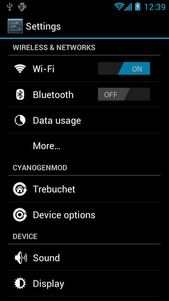
Here is the screen shot of ICS 4.0.4 on Motorola Defy Plus
· For most of the users flash player is now working in browser
· Chrome can be made to work using chainfire3d
· Air Twist (streaming through wi fi) of double twist player. Enabling it in wi fi disconnects internet.
Here is the screen shot of ICS 4.0.4 on Motorola Defy Plus


Pre
Requisites:
·
Please back up all your data like SMS Data, Contacts, Call Logs,
Songs Videos and Files in your Motorola Defy Plus because just in case if the
data get corrupted or Lost then same can be restored with below given steps.
Please be informed that Data backed up with the help of PC Suits does not support by the Custom ROM firmwares..
SMS –
Use “SMS Backup & Restore app”,
Contacts – Sync with the Gmail application,
Call Log - Call Log and Restore
Songs, Videos, Files – Copy to internal / External SD Card,
APN and MMS Settings – “Applications > Settings > Wireless and Network > Mobile Networks > Access Point Names”
Contacts – Sync with the Gmail application,
Call Log - Call Log and Restore
Songs, Videos, Files – Copy to internal / External SD Card,
APN and MMS Settings – “Applications > Settings > Wireless and Network > Mobile Networks > Access Point Names”
·
It is advisable to disable all your anti-virus suits in your
Device and Computer. There are chances that tends to interrupt the process of
firmware update.
·
As matter of precaution the device charge level should be more than
60% so as to ensure that Defy Plus
does not get turned off while in the process of firmware update.
·
Here is the path to enable the USB debugging on your device
“Settings > Applications > Development > USB debugging”. Then USB
Debugging option should be checked.
Steps
to Update Motorola Defy+ with Ice Cream Sandwich 4.0.4 Firmware:
·
Download Ice Cream Sandwich from Motorola Defy+ & Google
Apps on your computer.
·
Connect your Motorola Defy Plus to Computer. We are placing the
two downloaded zip files in your Defy Plus SD Card. Make sure that you
are not placing the file deep into the device or else device may get spoil.
·
To start in recovery mode you need to turn off the device. By
Pressing and holding the Volume Down button the Motorola Defy Plus can be
entered into the recovery mode and turn ON the device by pressing the Power button.
·
In the next step, select “install zip from sd card” > “choose
zip from sd card” > Ice Cream Sandwich 4.0.4 Firmware Package and press the
Power button to confirm the same.
·
Once this update is successfully applied then the device either
go back to recovery mode or you need to select “----- Go Back -----” and select
the option of “reboot system now” for rebooting the phone.
Note: If
the Motorola Defy plus get in Boot Loop mode then you need to take out the
battery and reinsert the battery and
start over the whole process from the beginning so as to apply the firmware
Just in case If you have any questions regarding this please
mention your comments in the comment section, we will try to respond at the
earliest.
01:38 0
How to Backup and Restore SMS in your Android phone:
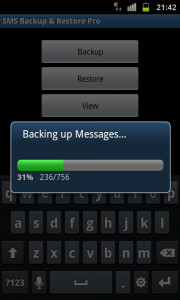 With this app you can simply take the back up of all your SMS messages. Here are the steps:
1. You need to download the SMS Backup and Restore app from the updated version of the android market place 3.3.12.
2. Once you download the application, it will began with installation process and follow the instructions to complete the installation
3. Once you are done with installation process, you need to open the same app from list of apps
4. When you open the App. it will take you to the option "Back Up" as soon as you select this option. all your SMS messages will be backed up.


5. To restore the backed up data, you need to open the app and tap on the option " Restore" then select the backup file to restore it

00:21 0
Subscribe to:
Posts (Atom)


